
Shopify Integration Guide

This guide provides step-by-step instructions for installing, configuring, and testing the V12 Retail Finance payment application on your Shopify store.

Important: A complete V12 integration requires both the Payment App and the Admin App to be installed. The Payment App enables V12 as a checkout payment option, while the Admin App provides essential order synchronisation, automation, and reconciliation features.
V12 Retail Finance Payment App

Installation Steps:

To install the V12 Retail Finance app:

Step 1: Access the App

Visit the official V12 Retail Finance listing on the Shopify App Store: V12 Retail Finance Listing

Step 2: Install the App

Click the 'Install' button on the left-hand side to add the application to your Shopify store.

Step 3: Enter Your Credentials

Input your Retailer Credentials, which can be found in your Integration Credentials spreadsheet.

Step 4: Activate V12 as a Payment Method

  • Go to the “Payments” tab in the app's settings.
  • Click “Activate” to enable V12 Retail Finance as a payment option on your store.

Configuration Steps

Once the app is installed and activated:

  1. Log in to your Shopify admin dashboard.
  2. Navigate to:
    1. Settings > Payments > V12 Retail Finance > More Actions > Manage
  3. You will be redirected to the V12 Retailer Portal to configure credentials for both Test and Live environments.

Testing & Go-Live Process

Before you begin testing or going live:

Notify V12

Please email integration@v12finance.com to:

  • Enable your account for testing or live transactions
  • Enable Test Mode
  • Go to the V12 app's settings in Shopify
  • Toggle “Test Mode” ON
    • This ensures that all applications are submitted through the test branch (configured via your integration Credentials spreadsheet).

Use Test Data

For full details on how to test the integration, including dummy customer data and decision simulation, visit: Integration Testing

Finance Product Configuration & Display Order

The V12 Shopify Payment App allows you to fully manage which finance products are available to your customers directly within the app.

To configure your finance options:

  1. Go to Settings in your Shopify admin
  2. Select Payments
  3. Choose V12 Retail Finance
  4. Click More actions, then select Manage
  5. Click Configure Finance Options

From here, you can configure your finance offering for both Live and Test environments. You can enable or disable specific finance options, use a simple drag-and-drop feature to control the order in which they appear at checkout and set specific minimum deposit percentages per finance product.

Once saved, changes are reflected immediately when customers select V12 at checkout.

You can also reset to the default configuration, which orders finance products by the lowest monthly repayment.

Alternative Delivery Address Setup

As part of the V12 Shopify integration, it is possible to allow customers to have their order delivered to an alternative delivery address. This feature is subject to approval and must be agreed with your account manager.

  • If approved, the option to use an alternative delivery address will be enabled on your account. Customers will then be able to select “Use a different billing address” during checkout.
  • When selected, both the customer's billing and shipping address will appear in the order details section.

If you are not approved for, or do not wish to offer, alternative delivery addresses, you can customise the wording displayed in the checkout to make this clear to customers:

  1. Log in to your Shopify store.
  2. Go to Settings > Checkout > Checkout language > Edit checkout content.
  3. In the Theme content section, use the search box to find the phrase “Use a different billing address”.
  4. Update the text to read:
    • Use a different billing address (Unavailable for Finance Orders)

V12 Retail Finance Admin App

Overview:

The V12 Retail Finance Admin App makes it easy to offer finance in your Shopify store. It gives you control over when finance is shown, keeps orders in sync with V12, and simplifies reconciliation between Shopify and the V12 Admin portal.

This app works alongside the V12 Shopify Payment App and is required for order synchronisation and automation.

Key Benefits:

  • Quick and easy installation.
  • Set checkout limits and exclude products from finance.
  • Automatic fulfilment, cancellation, and refund updates sent to V12.
  • V12 Application IDs and Shopify order numbers linked for easy tracking.
  • Customer addresses passed through into Shopify order notes for clarity.
  • Declined applications marked with the ‘Finance Rejected’ tag.

Installation:

  1. Go to the official app listing V12 Retail Finance Admin App.
  2. Click Install to add the app to your Shopify store.

Payment Customisation and Product Exclusions:

After installation, configure the following settings within the Admin app:

  • Minimum Checkout Amount - The lowest checkout value required for V12 to appear as a payment option.
  • Maximum Checkout Amount - The highest checkout value allowed for V12 to appear as a payment option.
  • Product Tag - V12.Disable - Apply this tag to products (e.g. gift cards) to exclude them from finance.

Automation & Sync Behaviour:

The app automatically keeps Shopify and V12 in sync:

  • Order Fulfilment - When an order is fulfilled in Shopify, a fulfilment request is automatically sent to V12.
  • Order Cancellation - Cancelling an order in Shopify sends a cancellation request to V12.
    • Note: Cancellations are only possible once the order is marked as paid (agreement received in V12) and before fulfilment.
  • Refunds - Partial refunds processed in Shopify automatically trigger a partial refund request to V12.

Orders & Reconciliation:

  • The V12 Application ID is displayed in the Shopify order notes, making it easy to locate the corresponding finance application in the V12 Admin site.
  • The Second Sales Reference in the V12 Admin site is automatically updated with the Shopify order number (e.g. #1143).

Addresses & Delivery Rules:

The customer's Billing Address and Shipping Address are passed through to the Shopify order notes. If a customer updates their address within the V12 application form, the Shipping Address in the order notes will be updated accordingly.

Please note:

  • Goods must be delivered to the address captured within the V12 application form.
  • This address will always be shown as the Shipping Address in Shopify by default.

If Alternative Delivery Address is enabled and the customer selects “Use a different billing address”, the Shipping Address entered at checkout will be used instead. In this scenario, any address changes made within the V12 application form will not update the Shipping Address in Shopify.

Declined Applications:

If a customer's application is Referred and then Declined:

  • A “Finance Rejected” tag is applied to the order in Shopify
  • The payment status is marked as Expired

If the customer is redirected back to checkout and successfully completes a new V12 finance application:

  • The “Finance Rejected” tag will be removed
  • The order payment status is updated to Paid

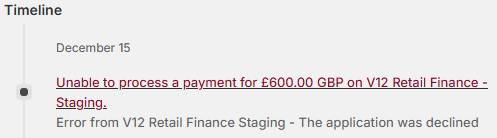
When an application is declined, the order will appear in Abandoned Checkouts. These entries include a red note in the Timeline stating that payment could not be processed, along with an error message confirming the decline.

If a customer appeals their Declined decision and is successful, you will be able to see the customer’s order details and contact information within the abandoned checkout section. A manual Shopify order will be required in this instance.

Shopfy Settings

Support

If you encounter any technical issues or need further assistance, please reach out using the below contact information:

integration@v12finance.com

salessupport@v12finance.com - (for credential support)